Getting Started
Dust Front ships no manual and its in-game tutorial is easy to skip, which is why "how does this even work" is the single most common question from new players. This guide is the tutorial — reassembled, in order, from the game's own coaching text — so you can read the whole thing before you ever deploy. Quoted lines are the verbatim in-game tutorial; the rest is structure and cross-links. For the full key list see the controls reference.
1. Deploy your strike group
Every battle starts in a deployment phase, not with a built base. As the tutorial puts it: "This is the army you have selected. They need to be placed on the battlefield to start the battle." You also "adjust the formation size by scrolling the mouse wheel," and once everything is placed "the battle start button will appear." Alongside your troops you're handed a 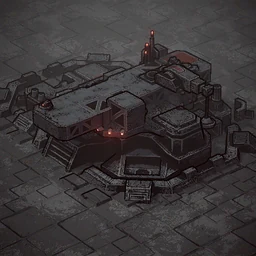 MCV — the mobile command post you'll unpack to build your base.
Reinforcements normally come from the strategic layer, but the current build lets you pick them up front instead — see Global Map & Reinforcements for how that works.
2. Know your four resources
The HUD tracks four economy bars. Straight from the interface tutorial:
| Resource | What it's for |
|---|---|
| Materials | "you build your army and structures." |
| Supply limit | "for maintaining troops on the map." |
| Parts | "allow you to develop technologies." Primarily replenished from the global map. |
| Network power | "powers your buildings." |
How those bars are produced and balanced is covered in the economy & logistics guide, and you can plan a build's net power and supply in the army & base planner.
3. Build a base — go big
The tutorial is blunt about scale: "Build refineries for resources. Barracks and war factories for army. The more, the better. You need a large base to succeed." To build, "select the MCV or Construction Crane, then in the menu choose the structure and select a location." Your core economy building is the 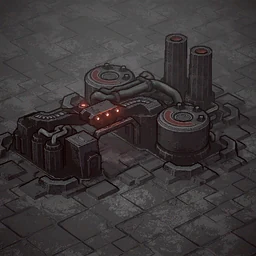 Processing plant, your army comes from the
 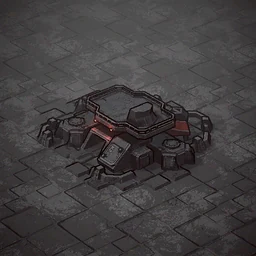 Barracks and
 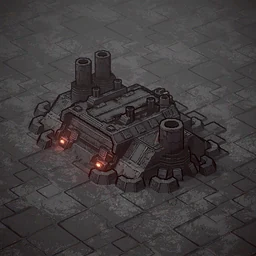 Machinery plant, and a second
 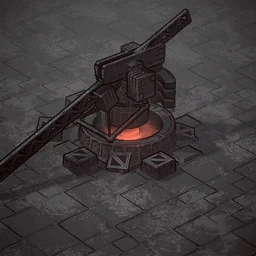 Construction crane gives you a parallel build queue.
A hidden time-saver most players miss: "for mass construction, select multiple objects with build options, press the hotkey for the option, choose the zone — the system will automatically switch to the next object." And note the second build tab: "Construction buildings have a second tab with special and defensive structures. Press ~(tilde) to switch tabs."
4. Select and control units
The control scheme the tutorial teaches, condensed:
| Action | Input |
|---|---|
| Select | Drag a box. Double-click a unit to grab all of that type on screen. |
| Add / remove from selection | Shift to add · Ctrl to remove |
| Move | Right-click the ground. Hold G + RMB to reverse. |
| Attack-move | A + left-click — push to a spot, engaging anything on the way |
| Focus fire | Right-click an enemy (without A) — everyone targets it |
| Queue orders | Hold Shift |
| Tactical pause | Spacebar — issue orders with the game paused |
| Selection hotkeys | F1 builders · F2 combat · F3 all units |
| Control groups | Hold Ctrl or T + a number |
One caveat the tutorial flags on reverse-move: "units that cannot fire while moving will ignore enemies along the way."
5. Capture, garrison and use abilities
Neutral buildings are free real estate: "Infantry can enter and garrison buildings, firing from within. The building's capacity is shown above it" — good for defense and extra vision. Many units carry abilities too; the MCV's lets it "move across the map, enabling construction in remote locations." See the full list on the abilities page.
Crucially, you have a global repair ability bound to B: "It repairs any of your buildings, as well as captured civilian structures and large units with deployment capability (for example, MCV or Dreadnought). To use it, press B and select a target." Repair costs materials — the deeper system is in repair & recovery.
6. Read the battle objectives and minimap
Objectives sit top-of-screen: "Main objectives are in white. Secondary objectives are in yellow." A typical battle asks you to "control three zones — each provides passive resource income" while you "destroy key enemy buildings… marked on the minimap," and warns "you will be defeated if your own buildings are destroyed." The minimap colour key is worth memorising:
| Minimap mark | Meaning |
|---|---|
| Gray points | Neutral |
| Red points | Enemy |
| Green points | Allied |
| Dark orange | Resources |
| Blue symbols | Main objective objects |
| Circles | Capture points |
Camera controls
Move the camera with the keyboard, by holding the mouse wheel, or by pushing the screen edges. To zoom, "hold left ALT and scroll the mouse wheel." If the camera feels stiff, you're not alone — it's one of the most-reported complaints, and a developer-side fix rather than something you can rebind today.
Tutorial text is quoted verbatim from the game's localization (English). You can always re-open the in-game version from the tutorial button: "You can always return to this tutorial by clicking this button. Good luck."